1. Not Checking Hardware Compatibility
One of the biggest mistakes people make before upgrading a computer is purchasing hardware without confirming whether it is compatible with their existing system. Every motherboard supports specific processors, memory types, storage interfaces, expansion slots, and power requirements. Installing incompatible hardware may prevent your computer from starting or cause certain components to function improperly.
Compatibility issues are especially common when upgrading processors, RAM, graphics cards, or NVMe solid-state drives. Even if two components appear physically similar, they may use different standards, chipsets, or firmware requirements that prevent them from working together correctly.
Spending a few minutes verifying compatibility before making a purchase can save considerable time, money, and frustration later. Reviewing your computer manufacturer's specifications or motherboard documentation helps ensure every component works together properly.
How to Avoid This Mistake
Confirm motherboard compatibility, supported processor models, RAM type, storage interfaces, expansion slots, and power requirements before purchasing any new hardware. Always verify manufacturer specifications rather than relying solely on appearance.
2. Choosing the Wrong Memory (RAM)
Increasing your computer's memory is often one of the easiest ways to improve multitasking performance, but selecting the wrong RAM can create compatibility problems or prevent your system from booting. Memory modules differ in generation (such as DDR4 or DDR5), speed, voltage, capacity, and physical design. Not every motherboard supports every memory specification.
Mixing different memory capacities, speeds, or manufacturers may sometimes reduce performance or limit dual-channel operation. In addition, installing more RAM than your motherboard or operating system supports may provide no additional benefit.
Before purchasing memory, review your motherboard documentation to determine the supported memory type, maximum capacity, recommended speed, and available memory slots. Choosing compatible RAM helps ensure stable operation and allows your computer to perform as intended.
After installing new memory, Windows should recognize the additional capacity automatically. If performance issues occur afterward, checking BIOS settings and ensuring the memory modules are properly seated can often resolve the problem.
How to Avoid This Mistake
Purchase RAM that matches your motherboard's supported specifications and install memory modules according to the manufacturer's recommended slot configuration for the best compatibility and performance.
3. Ignoring Power Supply Requirements
Every hardware component inside your computer depends on the power supply unit (PSU) for stable and reliable operation. When upgrading to a more powerful graphics card, installing additional storage drives, or replacing your processor, it's important to verify that your existing power supply can safely support the increased electrical demand. An underpowered or aging PSU may lead to random shutdowns, boot failures, system instability, or hardware damage under heavy workloads.
Modern graphics cards and high-performance processors often require dedicated power connectors and recommend minimum wattage ratings. Simply having enough wattage is not always sufficient—the power supply should also provide reliable voltage, quality internal components, and the appropriate connectors for your new hardware.
Investing in a reputable power supply not only supports your current upgrade but also improves long-term system reliability and provides flexibility for future hardware improvements.
How to Avoid This Mistake
Check the recommended power requirements for every new component before purchasing it. Make sure your power supply provides sufficient wattage, the correct power connectors, and reliable performance from manufacturer.
4. Skipping BIOS and Firmware Updates
Many users install new hardware without checking whether their motherboard BIOS or device firmware supports the upgrade. Motherboard manufacturers frequently release BIOS updates that improve hardware compatibility, add support for newer processors, enhance system stability, and resolve known issues. Without these updates, your computer may fail to recognize newly installed hardware or operate unpredictably.
Storage devices, graphics cards, and other peripherals may also receive firmware updates that improve compatibility and reliability. Although updating firmware should be approached carefully by following the manufacturer's instructions, it is often an important step when performing major hardware upgrades.
Before installing new components, verify whether newer BIOS or firmware versions are available for your motherboard and other devices. Updating beforehand can help reduce compatibility issues during installation.
How to Avoid This Mistake
Visit your motherboard manufacturer's support page to determine whether a BIOS update is recommended for your planned hardware upgrade. Always follow official update instructions carefully before installing new components.
5. Installing a New SSD Without Proper Preparation
Replacing an older hard drive with a solid-state drive (SSD) is one of the most effective upgrades for improving everyday computer performance. However, many users begin the installation without preparing their files, operating system, or storage configuration. This may result in unnecessary downtime, missing files, or installation difficulties after the upgrade is complete.
Before replacing your existing storage drive, decide whether you plan to clone your current drive or perform a clean Windows installation. Each approach has advantages depending on your computer's condition and personal preferences. Regardless of the method you choose, creating a complete backup of important files is strongly recommended.
Once the SSD has been installed successfully, Windows may also require updated storage or chipset drivers to ensure the new hardware performs efficiently and remains fully compatible with your system.
How to Avoid This Mistake
Back up important files before replacing your storage drive, decide whether to clone your existing installation or reinstall Windows, and install any recommended storage or chipset driver updates after the upgrade using Hewls Driver Updater.
6. Ignoring Cooling Requirements
Installing faster hardware often means generating more heat inside your computer. Components such as processors, graphics cards, and high-performance SSDs operate most efficiently within recommended temperature ranges. If your cooling system cannot dissipate this additional heat effectively, your computer may automatically reduce performance through thermal throttling to protect sensitive hardware.
Poor airflow can also shorten the lifespan of components and contribute to unexpected shutdowns, application crashes, or increased fan noise. Dust accumulation inside the case further restricts airflow, making cooling even less effective over time.
Before completing any major hardware upgrade, consider whether your existing cooling solution is adequate. Proper airflow benefits every component in your system and helps maintain stable long-term performance.
How to Avoid This Mistake
Clean dust from your PC regularly, verify that all cooling fans operate correctly, and ensure your computer case provides sufficient airflow for newly installed hardware.
7. Forgetting to Back Up Important Files
Hardware upgrades generally proceed without problems, but any modification to your computer carries some level of risk. Unexpected power interruptions, accidental formatting, operating system errors, or installation mistakes could result in the loss of valuable documents, photos, videos, or business files if they have not been backed up beforehand.
Creating a backup before replacing storage drives, upgrading memory, or reinstalling Windows provides peace of mind and allows you to recover your important data if something does not go as planned. External hard drives, cloud storage services, and Windows Backup tools all provide practical options for protecting your files.
Even experienced computer users routinely create backups before performing major hardware changes because recovery is significantly easier than attempting to restore lost information afterward.
How to Avoid This Mistake
Back up all important documents, photos, and personal files before beginning any hardware upgrade. Verify that your backup is complete and accessible before making changes to your system.
8. Skipping Driver Updates After Installing New Hardware
Installing new hardware is only part of the upgrade process. Many components require updated drivers before Windows can fully recognize their features and operate them efficiently. Graphics cards, wireless adapters, storage controllers, audio devices, and chipsets all depend on compatible drivers for proper communication with the operating system.
Without the appropriate drivers, new hardware may operate with limited functionality, reduced performance, or generic Windows drivers that do not include the manufacturer's latest optimizations. This can lead to unexpected compatibility issues or prevent certain features from working correctly.
Updating drivers immediately after installing new hardware helps ensure Windows communicates efficiently with each device while maintaining stability and compatibility across your system.
How to Avoid This Mistake
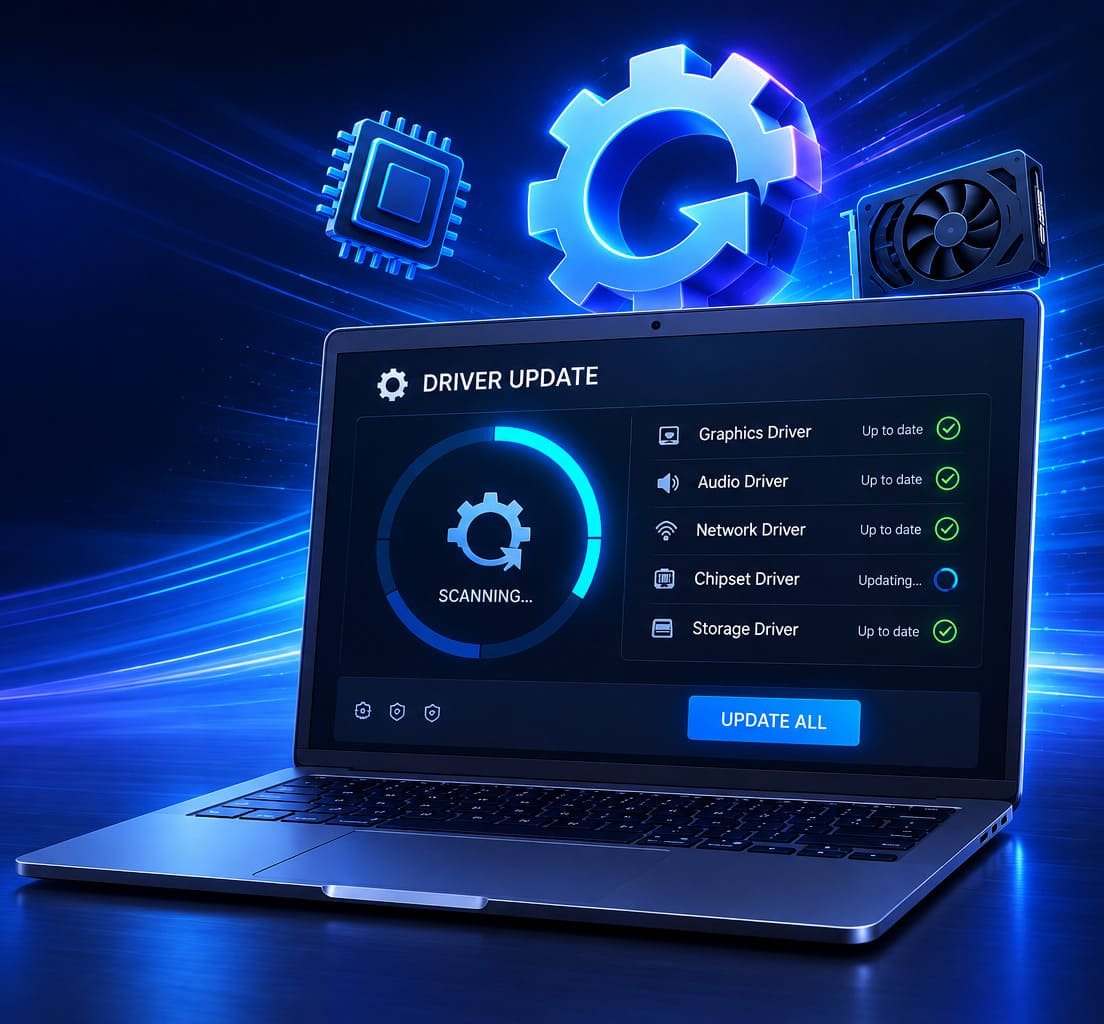
After completing your hardware upgrade, scan your computer using Hewls Driver Updater to identify newly installed devices and help install compatible drivers from our sources.
9. Buying Hardware Without Research
Attractive pricing and impressive specifications can sometimes encourage buyers to purchase hardware without fully understanding whether it meets their needs. Selecting components based solely on marketing claims or online advertisements may result in unnecessary spending or purchasing equipment that provides little practical improvement for your particular workload.
Before upgrading, consider how you actually use your computer. Office productivity, creative applications, gaming, programming, and general web browsing all place different demands on hardware. Understanding your usage helps you invest in upgrades that provide meaningful improvements instead of replacing components that already perform adequately.
Reading professional reviews, comparing manufacturer specifications, and verifying compatibility before purchasing can help you make informed decisions while avoiding costly mistakes.
How to Avoid This Mistake
Research each component carefully, compare specifications, verify compatibility with your existing system, and choose upgrades that align with your computing needs rather than purchasing solely based on price or advertising.
10. Rushing the Installation Process
One of the most common causes of hardware installation problems is simply rushing through the upgrade. Installing new components requires patience and careful attention to detail. Loose cables, improperly seated memory modules, forgotten power connectors, or incorrectly mounted storage devices can prevent a computer from starting or lead to intermittent hardware issues that are difficult to diagnose.
Every computer is built differently, so taking time to review the motherboard layout, hardware manuals, and installation instructions can prevent unnecessary mistakes. It's also important to handle sensitive electronic components carefully to reduce the risk of damage caused by static electricity.
After installing new hardware, inspect every connection before powering on the system. Confirm that expansion cards are fully inserted, power cables are secure, cooling fans are connected correctly, and storage devices are properly recognized by the BIOS before booting into Windows.
How to Avoid This Mistake
Take your time during every upgrade, follow the manufacturer's installation instructions carefully, double-check all cable connections, and test each component before closing your computer case.
Conclusion
Upgrading your computer is an excellent way to improve performance, extend the life of your hardware, and get more value from your existing system. Whether you're installing additional memory, upgrading to a faster SSD, replacing your graphics card, or improving your processor, careful planning is the key to a successful upgrade.
Most hardware upgrade problems are completely preventable. Taking time to verify compatibility, selecting quality components, backing up important files, ensuring adequate cooling, updating firmware when necessary, and installing the correct device drivers all contribute to a smoother installation process and a more reliable computer.
Once your new hardware is installed, keeping Windows and your device drivers updated is equally important. Updated drivers help your operating system communicate efficiently with newly installed hardware, improve compatibility, resolve known issues, and maintain long-term system stability.
Hewls Driver Updater simplifies this maintenance by scanning your computer for outdated, missing, or incompatible drivers and helping you install compatible updates from our sources. Combined with regular hardware maintenance and careful upgrade planning, it helps ensure your Windows PC continues to perform reliably for years to come.
Frequently Asked Questions
For many users, upgrading from a traditional hard drive to a solid-state drive (SSD) provides one of the most noticeable improvements in everyday performance. Increasing RAM can also improve multitasking, depending on your current system configuration.
Yes. Installing compatible drivers helps Windows communicate properly with newly installed hardware and may improve stability, compatibility, and overall performance.
Review your motherboard specifications, processor support list, memory compatibility, available expansion slots, storage interfaces, and power supply capacity before purchasing new components.
Absolutely. Creating a backup protects your important files in case unexpected problems occur during the upgrade process. External drives and cloud storage are both reliable backup options.
Hewls Driver Updater scans your Windows PC for outdated, missing, or incompatible drivers and helps install compatible versions from our sources, allowing newly installed hardware to work efficiently with your operating system.
Upgrade Smarter with Hewls Driver Updater
A successful PC upgrade doesn't end after installing new hardware. Keeping your device drivers up to date is an important part of maintaining compatibility, reliability, and long-term performance. Scan your system with Hewls Driver Updater to identify outdated or missing drivers, install compatible updates, and help your upgraded Windows PC perform at its best.
 James Carter