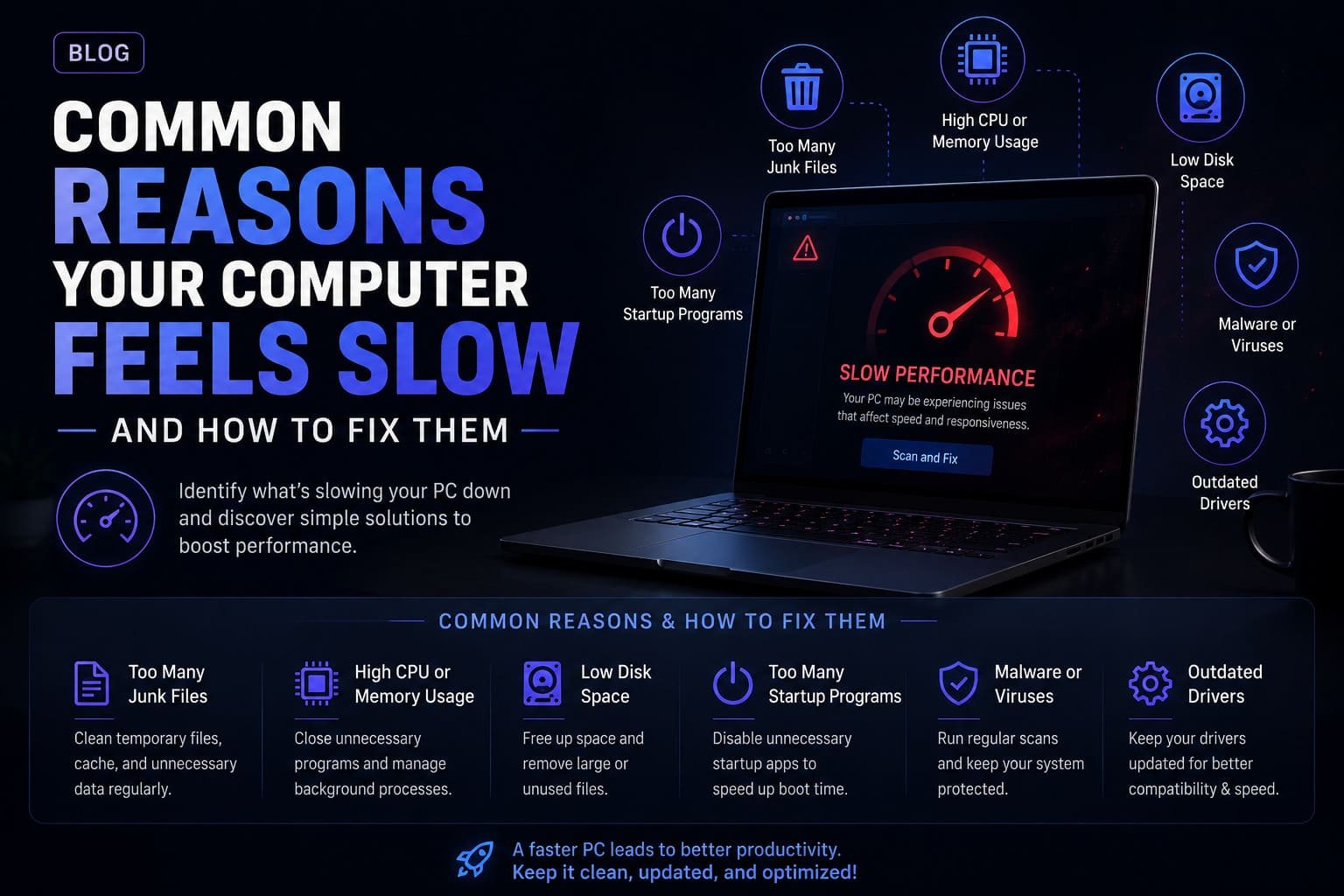
1. Too Many Startup Programs
One of the most common reasons a computer feels slow is having too many applications launch automatically when Windows starts. Many software programs add themselves to the startup list during installation so they can run in the background every time you turn on your computer. While each individual application may use only a small amount of system resources, multiple startup programs running together can significantly increase boot times and reduce overall responsiveness.
Background applications consume valuable memory, processor resources, and storage activity even when you are not actively using them. This may result in slower logins, delayed application launches, and reduced performance throughout the day.
Reviewing your startup applications regularly helps ensure that only essential programs launch automatically. Disabling unnecessary startup items does not uninstall the software—it simply prevents it from running until you open it manually.
How to Fix
Open Windows Task Manager and review the Startup Apps section. Disable programs that are not required every time your computer starts to reduce boot time and improve overall responsiveness.
2. Outdated or Missing Device Drivers
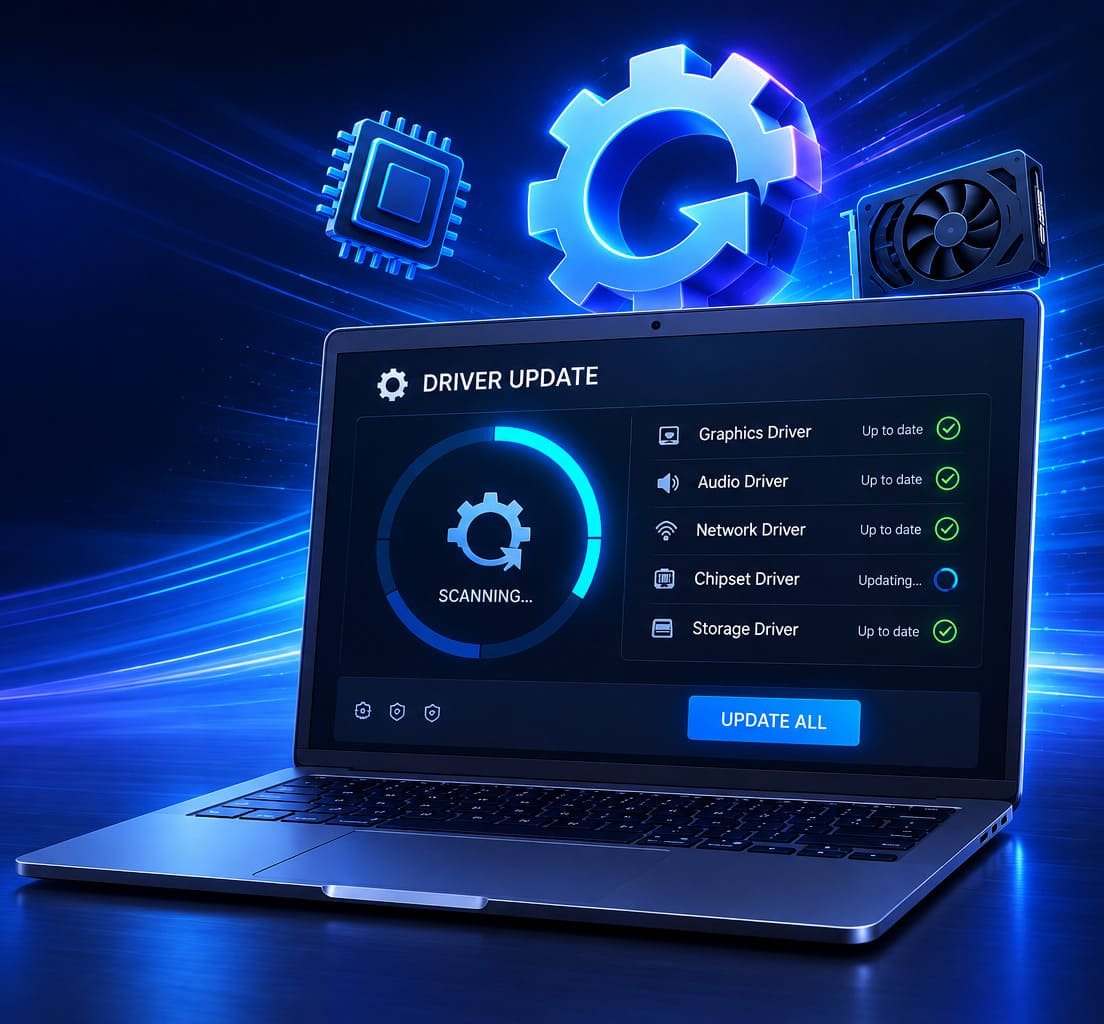
Device drivers allow Windows to communicate efficiently with your computer's hardware components. If drivers become outdated, missing, or incompatible, your system may experience reduced performance, hardware communication issues, unstable applications, or unexpected errors. Although drivers are only one part of overall computer maintenance, keeping them current helps maintain compatibility and system reliability.
Hardware manufacturers regularly release updated drivers that improve stability, resolve software bugs, and enhance compatibility with newer Windows updates. Ignoring these updates may gradually contribute to slower hardware performance or inconsistent device behavior.
Manually locating the correct drivers for every hardware component can be time-consuming, especially if your computer contains devices from multiple manufacturers. Automated driver management tools help simplify this process by identifying installed hardware and recommending compatible driver updates.
Maintaining up-to-date drivers supports smoother communication between Windows and your hardware while reducing the possibility of compatibility-related issues.
How to Fix
Perform a complete driver scan using Hewls Driver Updater. The software helps identify outdated or missing drivers and assists in installing compatible updates from our sources to support reliable system performance.
3. Low Available Storage Space
Your computer requires sufficient free storage space to perform everyday operations efficiently. Windows continuously creates temporary files, caches application data, downloads updates, and manages virtual memory while the system is running. When your storage drive becomes nearly full, these background processes have less room to operate, which may result in slower application launches, delayed file transfers, longer boot times, and reduced overall responsiveness.
Large video files, duplicate photos, outdated downloads, unused applications, and temporary system files often consume significant storage without users realizing it. Traditional hard drives (HDDs) are especially affected by limited free space, while solid-state drives (SSDs) also benefit from maintaining adequate available capacity.
Regularly reviewing your storage usage allows you to identify unnecessary files that can be safely removed. Built-in Windows tools and our cleanup utilities make it easier to reclaim storage without affecting important personal documents.
How to Fix
Delete unnecessary files, empty the Recycle Bin, uninstall software you no longer use, and move large media files to external or cloud storage. Keeping adequate free disk space helps Windows operate more efficiently.
4. Too Many Background Applications
Many applications continue running in the background even after you close their main windows. Cloud storage services, messaging applications, update managers, web browsers, media players, and utility software may all consume memory and processor resources simultaneously. While each program may only use a small amount of system resources individually, running dozens of background processes together can noticeably reduce overall performance.
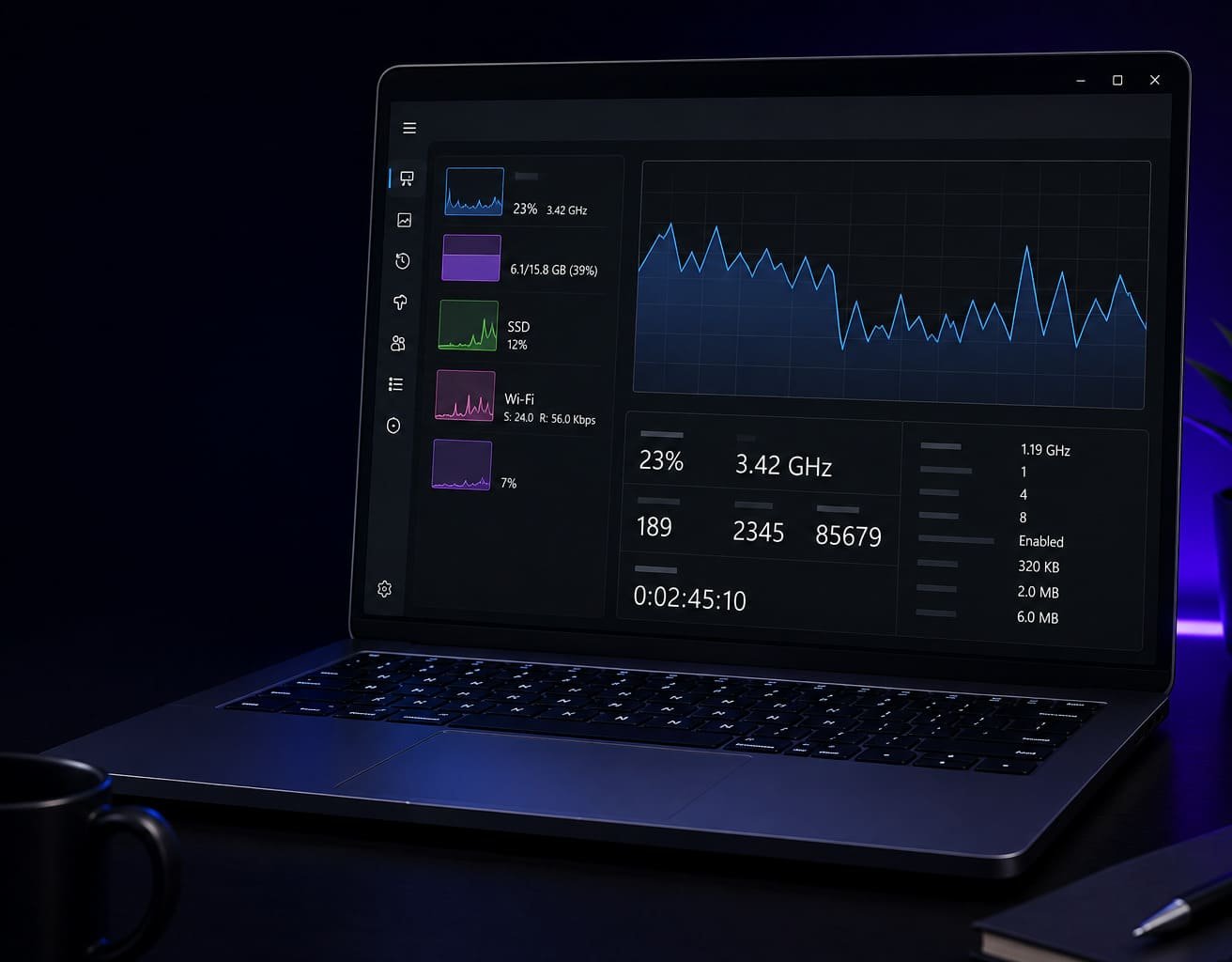
Background applications also increase CPU usage, network activity, and memory consumption, leaving fewer resources available for the programs you actively use. This often causes slower multitasking, delayed response times, and reduced battery life on laptops.
Understanding which applications are actively consuming resources can help you optimize your system without uninstalling software that you still need.
How to Fix
Open Task Manager to review CPU, memory, and disk usage. Close applications that are no longer needed and disable unnecessary background processes to free valuable system resources.
5. Malware, Adware, and Unwanted Software
Malicious software can significantly affect computer performance. Certain types of malware continuously consume processor resources, access storage devices, generate unwanted network traffic, or install additional background services without the user's knowledge. Even potentially unwanted programs (PUPs), browser toolbars, and excessive advertising software may reduce system responsiveness over time.
Symptoms of unwanted software may include unusually slow startup times, unexpected pop-up windows, browser redirects, excessive CPU usage, frequent crashes, or programs opening automatically. These issues not only reduce performance but may also affect system security and privacy.
Installing software only from our sources and keeping your security software updated helps reduce the risk of unwanted applications affecting your computer.
How to Fix
Perform a complete security scan using reputable antivirus software, uninstall suspicious applications, remove unnecessary browser extensions, and keep Windows Security enabled to help protect your system from malicious software.
6. Too Many Browser Extensions
Modern web browsers support extensions that add useful features such as password management, ad blocking, note taking, translation, and productivity tools. However, installing too many browser extensions can negatively affect browsing speed and overall computer performance. Many extensions continue running in the background, consuming memory and processor resources even when they are not actively being used.
Poorly optimized or outdated extensions may also increase page loading times, cause browsers to freeze, display unexpected advertisements, or conflict with website functionality. In some cases, unnecessary browser add-ons may even create security and privacy concerns if they request excessive permissions.
Reviewing installed browser extensions every few months helps ensure that only the tools you genuinely use remain active. Removing unnecessary extensions often improves browser responsiveness and reduces memory usage.
How to Fix
Open your browser's Extensions or Add-ons page and remove plugins that you no longer use. Keep only extensions installed and update them regularly to improve browser performance and security.
7. Insufficient Memory (RAM)
Random Access Memory (RAM) allows your computer to temporarily store information required by running applications. When available memory becomes limited, Windows starts relying more heavily on virtual memory stored on the hard drive or SSD, which is considerably slower than physical RAM. This often causes applications to respond slowly, windows to freeze, and multitasking to become difficult.
Users who regularly work with photo editing software, video editing applications, virtual machines, or multiple browser tabs may notice these slowdowns more frequently. Even everyday users may experience delays if numerous programs remain open simultaneously.
Monitoring memory usage helps identify applications consuming excessive RAM and provides insight into whether a hardware upgrade may eventually be beneficial.
How to Fix
Close applications that are not currently needed, restart your computer periodically to clear memory usage, and consider upgrading your system's RAM if you regularly experience high memory utilization during normal workloads.
8. Overheating and Dust Accumulation
Heat is one of the most overlooked causes of reduced computer performance. As dust builds up inside cooling fans, air vents, and heat sinks, airflow becomes restricted, causing internal temperatures to rise. To protect components such as the processor and graphics card, modern computers automatically reduce processing speeds whenever excessive heat is detected. This protective behavior, commonly called thermal throttling, often results in noticeably slower performance.
Laptops are especially susceptible because of their compact cooling systems. Blocked air vents, soft surfaces such as beds or couches, and high ambient temperatures can all contribute to overheating during normal use.
Maintaining proper airflow not only improves performance but may also help extend the lifespan of internal hardware components.
How to Fix
Clean dust from cooling vents, ensure fans are operating correctly, place laptops on hard surfaces during use, and avoid blocking ventilation openings to help maintain safe operating temperatures.
9. Missing Windows Updates
Microsoft regularly releases Windows updates that improve security, resolve software bugs, enhance compatibility, and optimize system reliability. Running an outdated version of Windows may leave your computer without important performance improvements or fixes for known issues that affect stability.
Although some updates require a restart and may take time to install, keeping Windows current helps ensure your operating system works efficiently with modern hardware, software, and device drivers. Delaying updates for long periods may eventually create compatibility problems with newer applications and peripherals.
Updating Windows, together with maintaining current drivers and software, forms an important part of routine computer maintenance.
How to Fix
Open Windows Update in the Settings app and install available security updates, feature improvements, and optional hardware updates. Restart your computer after installation to complete the update process.
10. Aging Storage Drives and Hardware Limitations
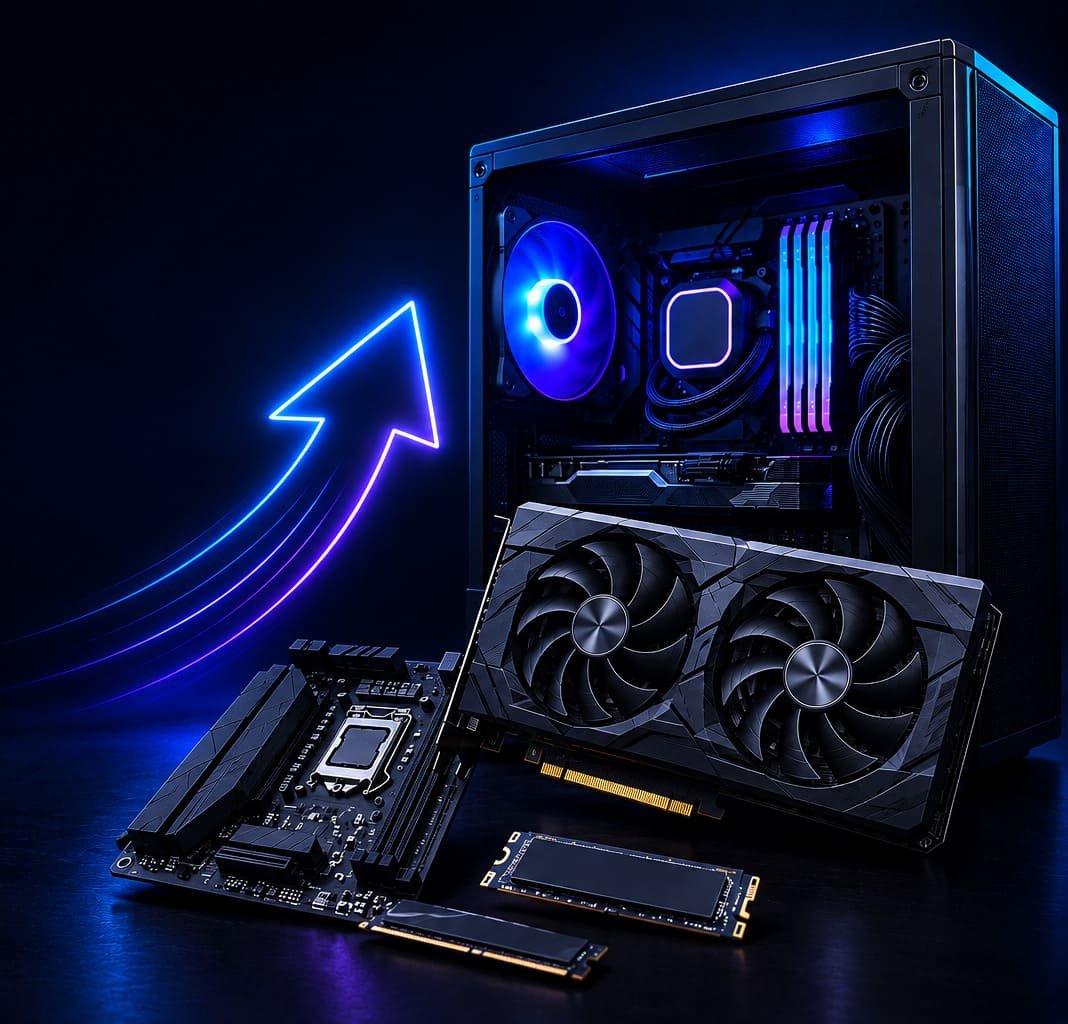
As computers age, their hardware naturally becomes less efficient compared to newer technology. Traditional hard disk drives (HDDs) may develop slower read and write speeds over time due to mechanical wear, while older solid-state drives (SSDs) can experience reduced performance after years of heavy use. Although modern storage devices are designed for long-term reliability, aging hardware can contribute to slower boot times, delayed application launches, and longer file transfer operations.
Hardware limitations also become more noticeable as newer versions of Windows and modern applications require additional system resources. An older processor, limited RAM, or outdated storage technology may struggle to keep pace with current software demands, even if the computer previously performed well.
Regular maintenance helps extend the usable life of your computer, but if hardware components are approaching the end of their expected lifespan, upgrading individual parts or replacing the system may eventually provide the best long-term solution.
How to Fix
Monitor your storage drive's health, keep your operating system optimized, and consider upgrading to an SSD or increasing system memory if your hardware no longer meets your everyday performance requirements.
Conclusion
A slow computer does not always indicate a serious hardware failure. In many situations, poor performance develops gradually as startup applications accumulate, storage space fills up, software becomes outdated, or routine maintenance is overlooked. By identifying the underlying cause, you can often restore much of your computer's responsiveness without replacing the entire system.
Performing regular maintenance is one of the most effective ways to keep your Windows PC operating efficiently. Keeping Windows updated, removing unnecessary software, maintaining sufficient free storage space, protecting your computer from malware, and reviewing startup applications all contribute to improved performance and long-term reliability.
Device drivers also play an important role in overall system stability. While they are only one part of computer maintenance, keeping drivers updated helps improve hardware compatibility and reduces the possibility of software conflicts. Regular driver maintenance, combined with good system housekeeping, provides a more dependable computing experience.
Hewls Driver Updater helps simplify driver management by scanning your computer for outdated, missing, or incompatible drivers and assisting with compatible updates from our sources. Together with regular Windows maintenance, it can help support a smoother, more reliable PC experience.
Frequently Asked Questions
Computers gradually slow down as more software is installed, startup programs increase, storage becomes full, drivers become outdated, and background processes consume additional system resources.
Driver updates primarily improve hardware compatibility, stability, and reliability. While some updates may improve performance for specific hardware, overall computer speed also depends on storage, memory, processor capability, and system maintenance.
Cleaning temporary files monthly and removing dust from your computer every few months helps maintain cooling performance and overall system efficiency.
Yes. Restarting Windows clears temporary memory usage, closes background processes, and completes pending system updates, which may improve responsiveness.
Hewls Driver Updater helps identify outdated, missing, and incompatible device drivers, provides backup and restore features, and assists in installing compatible driver updates to support stable hardware performance.
Keep Your PC Performing at Its Best
Regular computer maintenance is the key to better performance and long-term reliability. Scan your system with Hewls Driver Updater to help identify outdated or missing drivers, maintain hardware compatibility, and support a smoother Windows experience. Combined with routine system maintenance, keeping your drivers up to date can help your computer perform more efficiently every day.

 James Carter