1. What Is Windows Task Manager?
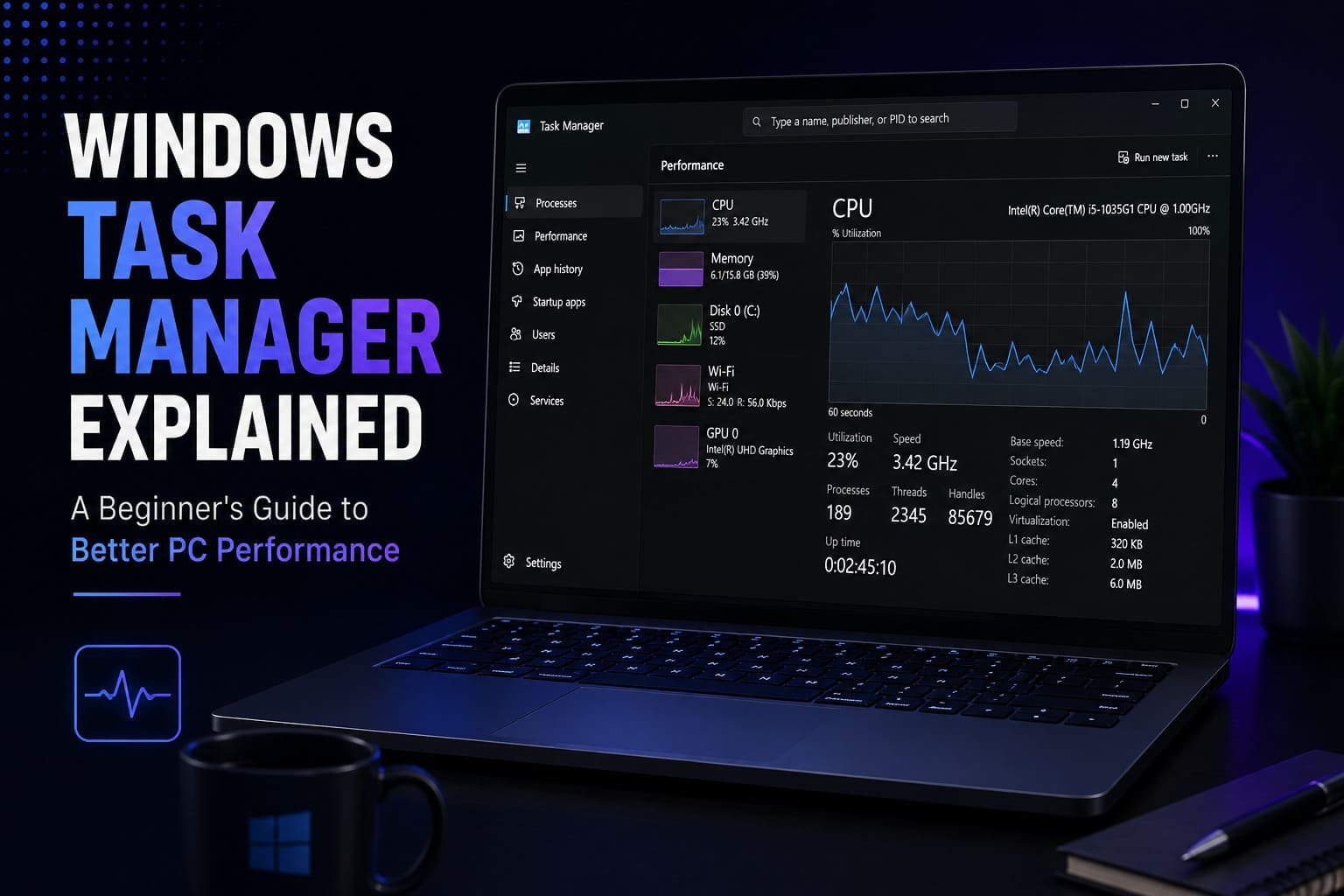
Windows Task Manager is a built-in system utility that provides real-time information about the programs, background processes, hardware resources, and overall performance of your computer. It allows users to monitor CPU usage, memory consumption, storage activity, network utilization, and the status of running applications from a single interface.
Beyond monitoring performance, Task Manager also enables users to close unresponsive applications, review startup programs, check system uptime, and identify which applications are placing the greatest demand on computer resources. These features make it an essential troubleshooting tool for both beginners and experienced Windows users.
Since Task Manager is included with Windows, no additional software is required. Whether you're diagnosing slow performance, investigating unusually high CPU usage, or simply monitoring your computer's health, Task Manager provides valuable information that helps you understand what is happening behind the scenes.
Helpful Tip
You can quickly open Task Manager by pressing Ctrl + Shift + Esc, right-clicking the Windows taskbar and selecting Task Manager, or pressing Ctrl + Alt + Delete and choosing Task Manager from the menu.
2. Understanding CPU Usage
The Central Processing Unit (CPU) is often referred to as the brain of your computer because it performs the calculations required to run applications, process data, and execute operating system tasks. Within Task Manager, the CPU section displays how much processing power is currently being used and which applications are responsible for that activity.
During demanding tasks such as video editing, gaming, software development, or large file compression, higher CPU usage is expected. However, if CPU utilization remains consistently high while your computer is idle, it may indicate that background applications, unnecessary startup programs, or other software are consuming processing resources.
Monitoring CPU usage over time helps identify programs that may be affecting system responsiveness. Closing applications that are no longer needed or reducing unnecessary background activity can often improve overall performance without requiring hardware upgrades.
It's also worth noting that occasional spikes in CPU usage are completely normal. Windows performs routine maintenance, security checks, and software updates that may temporarily increase processor activity. Understanding the difference between normal short-term usage and prolonged high utilization helps users troubleshoot performance issues more effectively.
How to Improve Performance
Use Task Manager to identify applications with consistently high CPU usage. Close programs you no longer need, keep Windows updated, and ensure your device drivers remain current using Hewls Driver Updater to maintain stable communication between Windows and your hardware.
3. Understanding Memory (RAM) Usage
Random Access Memory (RAM) is the temporary workspace your computer uses to run applications and process data efficiently. Every program you open consumes a portion of available memory, including web browsers, office software, games, and background services. The Performance tab in Windows Task Manager displays how much memory is currently in use and how much remains available.
If your system regularly uses most of its available memory, Windows may begin relying more heavily on virtual memory stored on your storage drive. Although this allows applications to continue running, accessing storage is considerably slower than accessing physical RAM, which can make your computer feel sluggish when switching between programs or opening new applications.
High memory usage does not necessarily indicate a problem. Professional software such as video editors, virtual machines, and modern web browsers naturally require more RAM than lightweight applications. However, unusually high memory consumption while performing simple tasks may suggest that unnecessary applications are running in the background or that a program is not managing memory efficiently.
Monitoring RAM usage through Task Manager allows you to understand how your applications utilize system resources and helps determine whether reducing background activity or upgrading memory could improve your overall computing experience.
How to Improve Performance
Close applications you are no longer using, reduce the number of browser tabs open simultaneously, and review background software that may be consuming excessive memory. If your system frequently operates near maximum memory capacity during normal workloads, upgrading your RAM may also be worth considering.
4. Managing Startup Applications
Many applications automatically configure themselves to start whenever Windows boots. While some startup programs are necessary for security software or essential hardware utilities, others simply run in the background without providing immediate benefits. Over time, having too many startup applications can significantly increase boot times and reduce overall system responsiveness.
Task Manager includes a dedicated Startup Apps section that displays every application configured to launch automatically during startup. It also provides a Startup Impact rating, giving users an indication of which applications have the greatest influence on boot performance.
Disabling unnecessary startup programs does not uninstall the software. Instead, it simply prevents those applications from launching automatically when Windows starts, allowing your computer to boot more quickly while freeing valuable CPU and memory resources for other tasks.
Before disabling any startup item, review its purpose carefully. Applications related to security software, hardware management, or essential Windows services should generally remain enabled unless you fully understand their function.
How to Improve Performance
Open the Startup Apps section in Task Manager and disable non-essential applications that you don't need immediately after Windows starts. Keeping only important startup programs enabled can noticeably improve boot speed.
5. Ending Unresponsive Applications Safely
Nearly every Windows user has encountered an application that suddenly stops responding. Instead of closing normally, the program may freeze, stop accepting input, or display a "Not Responding" message. Task Manager provides a simple way to safely close these applications without restarting your entire computer.
Within the Processes tab, Task Manager displays every running application together with its current resource usage. If a program becomes unresponsive or consumes unusually high CPU or memory resources for an extended period, you can select it and choose End Task. This forces Windows to close the application so that system resources become available again.
Although ending an application may result in unsaved work being lost, it is often the quickest solution when software no longer responds. After closing the program, you can usually restart it and continue working normally.
If the same application freezes repeatedly, the issue may be related to outdated software, incompatible device drivers, insufficient system resources, or corrupted program files. Identifying recurring patterns can help determine the appropriate troubleshooting steps.
Helpful Tip
Only end applications that you recognize and know are safe to close. Avoid terminating unfamiliar Windows system processes, as doing so may affect operating system stability or require a restart.
6. Monitoring Disk Performance
Your computer's storage device plays a significant role in overall system responsiveness. Every time Windows starts, launches an application, opens a document, or saves a file, it reads from or writes data to your storage drive. Task Manager's Performance tab allows you to monitor disk activity in real time, helping you determine whether your storage device is becoming a performance bottleneck.
High disk usage is common during Windows updates, antivirus scans, software installations, and large file transfers. However, if your disk remains close to 100% utilization for extended periods while performing simple tasks, it may indicate that background applications, indexing services, or other processes are placing excessive demand on the drive.
Computers equipped with solid-state drives (SSDs) generally provide faster boot times and application loading compared to traditional hard disk drives (HDDs). Regardless of the storage type, monitoring disk performance can help identify unusual activity and improve overall system responsiveness.
Understanding normal disk activity makes it easier to recognize situations where software or background services may be slowing down your computer unnecessarily.
How to Improve Performance
Use Task Manager to identify programs causing unusually high disk usage. Close applications that are no longer needed, allow Windows updates to complete, and maintain adequate free storage space to help your system perform efficiently.
7. Checking Network Activity
Task Manager also provides valuable insight into how your computer uses the internet. The Network section displays the amount of data being uploaded and downloaded by your applications, helping you identify programs that may be consuming bandwidth in the background.
Cloud storage services, web browsers, streaming platforms, online games, Windows updates, and software installers commonly generate network traffic. While these activities are often legitimate, unexpected network usage during periods of inactivity may indicate background downloads or applications syncing data automatically.
Monitoring network activity can be particularly useful when troubleshooting slow internet performance or identifying applications that are affecting available bandwidth. It also helps users better understand how different programs communicate with online services throughout the day.
Helpful Tip
If your internet connection feels slower than expected, review Task Manager's Network column to determine whether background applications are downloading updates or transferring large amounts of data.
8. Understanding Background Processes
Modern versions of Windows run numerous background processes that support essential operating system functions, hardware communication, security services, and installed applications. While the number of processes shown in Task Manager may appear surprisingly high, many of them are legitimate and necessary for stable system operation.
Background processes allow applications to perform tasks such as checking for updates, synchronizing files, displaying notifications, and maintaining device functionality without requiring user interaction. However, some third-party software may continue running even when it is no longer actively being used, consuming processor time and memory unnecessarily.
Rather than attempting to close every background process, users should focus on identifying applications that consistently consume excessive system resources or those that are no longer required. Understanding which processes belong to Windows and which belong to installed software helps avoid accidentally interrupting important system functions.
Best Practice
Review background processes periodically, uninstall software you no longer use, and disable unnecessary startup applications instead of ending important Windows services manually.
9. Why Device Drivers Matter for System Performance
While Task Manager provides valuable information about how your computer is performing, it does not directly repair performance problems. In many cases, slow hardware performance may be related to outdated, missing, or incompatible device drivers rather than excessive resource usage alone. Drivers allow Windows to communicate efficiently with your graphics card, storage controller, network adapter, audio hardware, printer, and many other devices.
When drivers become outdated or incompatible after Windows updates or hardware changes, certain devices may not operate as efficiently as intended. This can contribute to slower performance, reduced stability, hardware errors, or limited functionality that may not be immediately obvious through Task Manager alone.
Keeping drivers current complements the information provided by Task Manager. Together, they help users monitor system health while ensuring that hardware communicates properly with the operating system.
How to Improve Performance
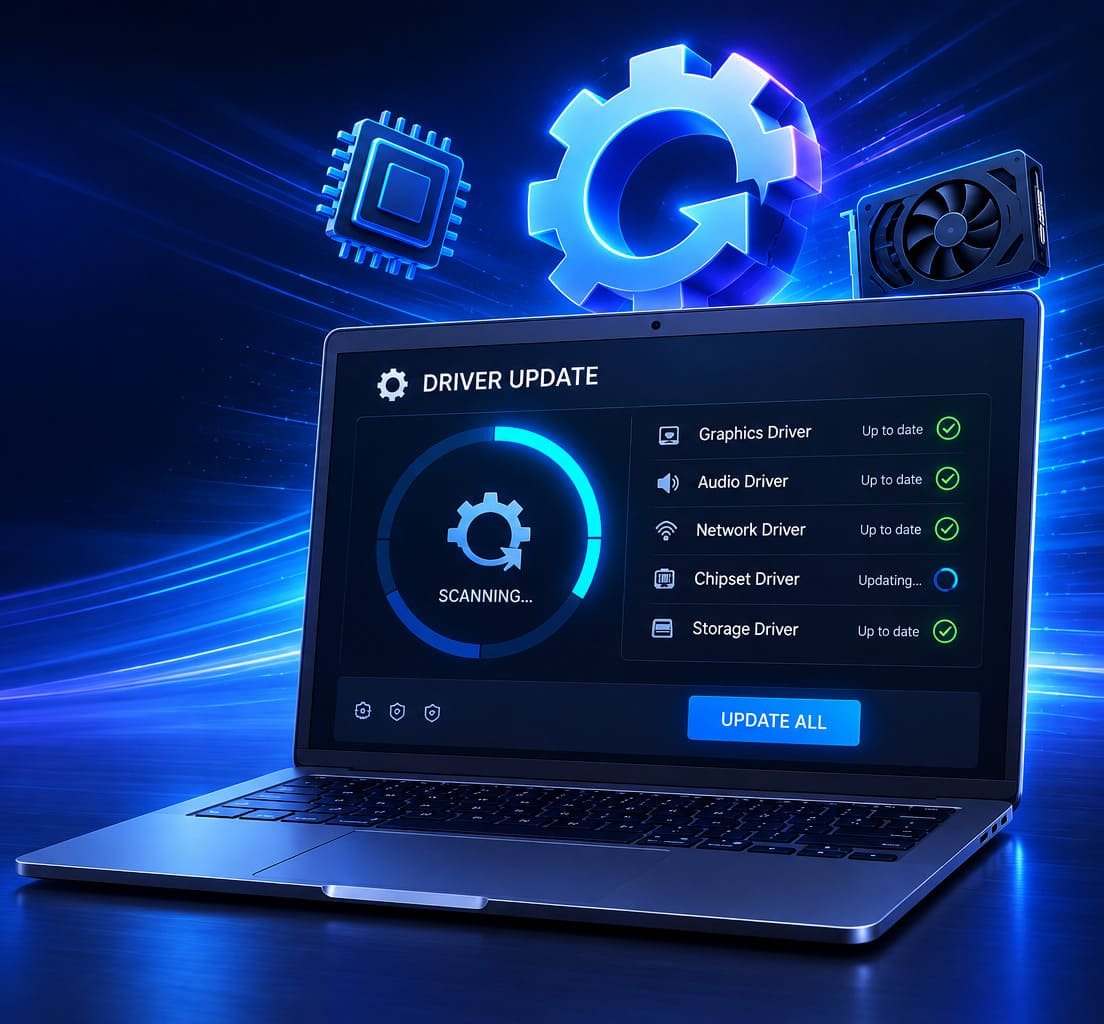
Scan your computer periodically with Hewls Driver Updater to identify outdated or missing device drivers. Installing compatible driver updates from our sources helps maintain hardware compatibility, improve stability, and support reliable Windows performance.
10. Make Task Manager Part of Your Regular PC Maintenance
Windows Task Manager is more than just an emergency troubleshooting tool—it can become an important part of your routine computer maintenance. Spending a few minutes reviewing your system's performance every week can help you identify potential issues before they develop into larger problems. Monitoring CPU, memory, disk, and network activity allows you to recognize unusual behavior, detect applications consuming excessive resources, and maintain a responsive Windows environment.
As you install new software over time, additional background services and startup applications may gradually increase resource usage. By checking Task Manager periodically, you can determine whether these applications are still necessary and make informed decisions about which programs should continue running automatically.
Task Manager works best when combined with other good maintenance habits, including installing Windows updates, maintaining sufficient storage space, scanning for malware, and keeping your device drivers up to date. Together, these practices help improve stability, reliability, and long-term system performance.
Best Practice
Open Task Manager regularly to monitor your system's health, review startup applications, and identify resource-intensive software. Consistent maintenance helps keep your Windows computer running efficiently over time.
Conclusion
Windows Task Manager is one of the most useful diagnostic tools included with the Windows operating system. From monitoring processor activity and memory usage to managing startup applications and identifying resource-intensive programs, it provides valuable insight into how your computer operates on a daily basis.
Learning to interpret the information displayed in Task Manager enables you to troubleshoot slow performance, improve startup times, monitor hardware usage, and better understand how applications interact with your system. Rather than waiting until your computer becomes noticeably slow, using Task Manager as part of regular maintenance allows you to identify potential performance issues early.
While Task Manager helps you monitor system performance, maintaining updated device drivers is equally important. Compatible drivers allow Windows to communicate efficiently with your hardware, improving stability, compatibility, and overall reliability. Outdated or missing drivers may contribute to hardware issues that Task Manager alone cannot resolve.
Hewls Driver Updater complements Task Manager by scanning your computer for outdated, missing, or incompatible device drivers and helping you install compatible updates from our sources. Combining regular performance monitoring with proactive driver maintenance helps keep your Windows PC operating smoothly for work, learning, entertainment, and everyday computing.
Frequently Asked Questions
Yes. Windows Task Manager is a built-in Microsoft utility designed to help users monitor system performance, manage applications, and troubleshoot common performance issues safely.
High CPU usage may occur because of demanding applications, background services, Windows updates, or software running continuously. Task Manager can help identify which processes are using the most processor resources.
Yes. Disabling unnecessary startup applications reduces the number of programs that load when Windows starts, which may improve boot times and free system resources for other tasks.
No. Many background processes are essential for Windows and installed applications to function correctly. Only close programs that you recognize and understand. If you're unsure about a process, research it before ending it.
Hewls Driver Updater scans your Windows PC for outdated, missing, or incompatible device drivers and helps install compatible updates from our sources. Keeping drivers current supports hardware compatibility, system stability, and reliable overall performance.
Monitor Smarter, Maintain Better with Hewls Driver Updater
Windows Task Manager gives you valuable insight into your computer's performance, while Hewls Driver Updater helps ensure your hardware continues operating efficiently by identifying outdated, missing, or incompatible device drivers. Together, these tools support a faster, more stable, and reliable Windows experience. Regular performance monitoring combined with routine driver maintenance is one of the simplest ways to keep your PC running smoothly for years to come.
 James Carter