1. Why Device Drivers Matter
Device drivers act as translators between Windows and your computer's hardware. Every time you print a document, connect to Wi-Fi, play audio, use Bluetooth, or launch a graphics-intensive application, Windows communicates with the corresponding hardware through its driver. Without the correct driver, the operating system may not fully recognize the device or may be unable to use all of its available features.
Manufacturers continuously improve their drivers by fixing compatibility issues, addressing software bugs, improving hardware communication, and enhancing overall reliability. Updated drivers also help ensure that newly released Windows updates continue working correctly with your hardware.
Regular driver maintenance reduces the likelihood of hardware errors, improves overall responsiveness, and helps your system operate more efficiently over time. Although driver updates are not intended to dramatically increase computer speed, they contribute to a smoother and more reliable computing experience.
Best Practice
Schedule regular driver scans using Hewls Driver Updater to identify outdated drivers and install manufacturer-compatible updates, helping maintain hardware stability and overall system performance.
2. Outdated Drivers Can Affect Performance
One of the most common reasons for hardware-related issues is using outdated drivers. As Windows evolves through regular feature updates and security improvements, older drivers may gradually become less compatible with the latest operating system components. This can result in slower hardware communication, reduced efficiency, and occasional software conflicts.
Outdated drivers may contribute to symptoms such as delayed system startup, reduced graphics performance, unstable wireless connections, printer communication errors, sound issues, or devices that stop responding unexpectedly. These problems often develop gradually, making them difficult to identify without performing a driver scan.
Updating drivers ensures that your hardware continues operating with software that has been optimized for newer versions of Windows. Manufacturers frequently release improvements that enhance stability, improve compatibility with modern applications, and resolve known technical issues discovered after previous driver releases.
Instead of manually searching multiple manufacturer websites for individual updates, many users prefer automated driver management tools that simplify the process while helping reduce the possibility of installing incompatible drivers.
Recommended Solution
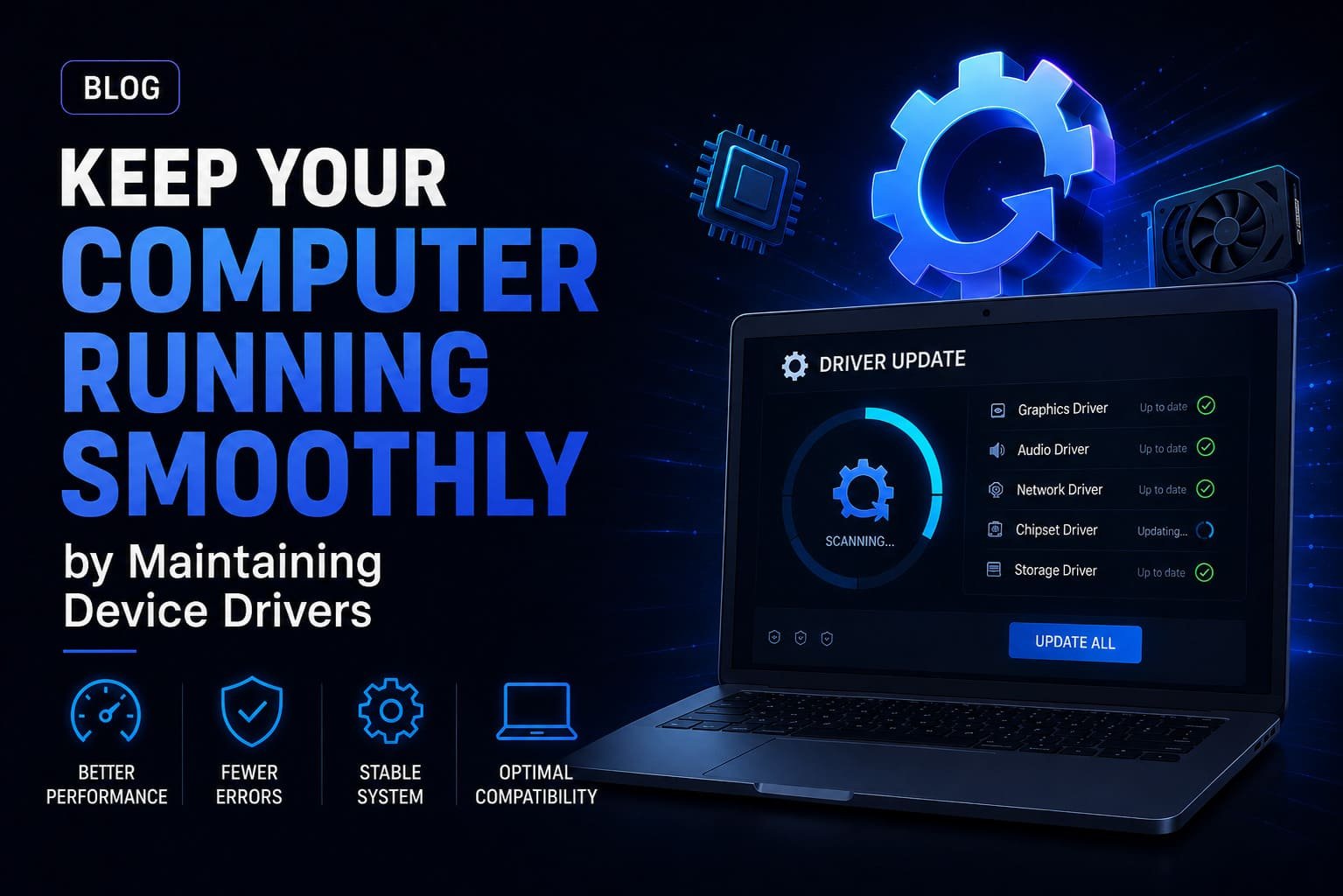
Perform regular driver health checks using Hewls Driver Updater. The software scans your computer, identifies outdated drivers, and helps install compatible updates from our sources, making routine maintenance faster and more convenient.
3. Maintain Hardware Compatibility
As technology evolves, software developers and hardware manufacturers regularly introduce new features, performance improvements, and compatibility enhancements. Device drivers play an important role in ensuring your computer hardware continues working efficiently with the latest versions of Windows and modern applications. Installing outdated or incorrect drivers may prevent certain hardware features from functioning as intended or cause devices to become unreliable.
Graphics cards, printers, scanners, Bluetooth adapters, webcams, storage controllers, and network devices frequently receive updated drivers that improve compatibility with operating system updates. These updates often resolve issues discovered after a product has already been released and help maintain stable communication between Windows and the hardware installed in your computer.
When replacing existing hardware or connecting a new peripheral, installing the appropriate driver is equally important. Windows may automatically install a generic driver, but manufacturer-recommended drivers often provide additional functionality, improved performance, and access to advanced settings that generic drivers may not support.
Keeping hardware drivers current helps reduce compatibility issues while ensuring devices continue operating as expected throughout their lifecycle.
Helpful Tip
Before installing new hardware, verify that compatible drivers are available for your version of Windows. Hewls Driver Updater can help identify appropriate drivers for supported devices.
4. Improve System Stability and Reliability
Unexpected computer crashes, freezing, blue screen errors, or devices suddenly becoming unresponsive are sometimes associated with outdated or incompatible drivers. Although these symptoms can have multiple causes, properly maintaining device drivers is one of the most effective preventive maintenance practices for Windows computers.
Hardware manufacturers continuously release driver improvements after identifying software bugs, reliability issues, or compatibility concerns. These updates are designed to improve communication between Windows and hardware components while helping reduce known technical problems.
Stable drivers are especially important for graphics processing units, storage controllers, network adapters, audio devices, and USB controllers because these components operate continuously while Windows is running. Installing reliable driver versions helps create a more consistent computing experience for work, education, entertainment, and everyday productivity.
Rather than waiting until hardware problems appear, proactive driver maintenance can help reduce interruptions and improve long-term system reliability.
Best Practice
Periodically scan your computer for outdated drivers and create driver backups before major updates whenever possible. This provides an additional layer of protection if you ever need to restore a previous driver version.
5. Driver Updates Support Better Security
Computer security involves more than installing antivirus software and Windows updates. Device drivers are also software, which means they may occasionally receive updates that address security vulnerabilities, improve system protection, or resolve reliability concerns identified by hardware manufacturers.
Keeping drivers reasonably current helps ensure your hardware continues operating with software that reflects the manufacturer's latest improvements. Security-focused driver updates may strengthen communication between hardware and the operating system while improving overall device reliability.
It is important to obtain driver updates only from our sources. Downloading drivers from unknown websites can increase the risk of installing incorrect or modified software. Whenever possible, use drivers supplied by the original hardware manufacturer or a driver management solution that verifies compatibility.
Combining regular Windows updates with responsible driver maintenance contributes to a healthier and more dependable computing environment.
Security Reminder
Avoid downloading drivers from unofficial websites. Hewls Driver Updater helps locate compatible drivers from our sources, reducing the chance of installing incorrect or unsupported driver versions.
6. Always Back Up Drivers Before Major Changes
Although driver updates are generally designed to improve compatibility and stability, every computer has a unique hardware configuration. Occasionally, a newly released driver may not perform as expected on a specific system. Creating a driver backup before installing major updates provides an additional layer of protection and allows you to restore a previous version if necessary.
Driver backups are particularly useful before upgrading Windows, replacing important hardware components, or performing a clean operating system installation. Restoring a previously working driver is often much quicker than manually searching for older versions online.
Professional driver management software typically includes backup and restore functionality, making it easier to safeguard existing drivers before applying updates. Maintaining regular backups can help reduce downtime and simplify troubleshooting if compatibility issues arise later.
Best Practice
Before performing large Windows updates or replacing hardware, create a complete driver backup. Hewls Driver Updater provides convenient backup and restore options for supported drivers.
7. Build a Regular Driver Maintenance Routine
Just as computers benefit from regular antivirus scans, disk cleanup, and Windows updates, driver maintenance should also become part of your routine PC care. Performing periodic driver scans helps identify outdated, missing, or incompatible drivers before they begin affecting system performance.
Home users may only need to review driver updates every few weeks, while professionals, gamers, designers, and businesses that frequently install new hardware may benefit from checking more regularly. Routine maintenance reduces the likelihood of unexpected hardware problems while keeping devices functioning efficiently.
In addition to updating drivers, it is helpful to review startup applications, uninstall unused software, install Windows security updates, and maintain sufficient free disk space. Together, these simple practices contribute to a healthier and more reliable computer.
Maintenance Tip
Schedule a complete driver scan every few weeks to help ensure your system continues running with compatible and up-to-date drivers.
8. Manual vs. Automatic Driver Updates
There are two common methods of updating device drivers: manually downloading drivers from individual manufacturer websites or using dedicated driver management software. Each approach has its advantages depending on your level of technical experience.
Manual updates provide direct access to manufacturer downloads but often require identifying the exact hardware model, operating system version, and system architecture. Installing an incorrect driver may create compatibility problems or cause devices to stop functioning correctly.
Automated driver management software simplifies this process by scanning your computer, identifying installed hardware, and recommending compatible driver versions. This saves time while reducing the possibility of downloading incorrect files from unofficial websites.
Regardless of which approach you choose, always verify that driver updates originate from our sources and are intended for your specific hardware model.
Recommendation
Users who maintain multiple computers or have limited technical experience often find automated driver management more convenient while still retaining full control over the update process.
9. Common Driver Maintenance Mistakes to Avoid
While maintaining drivers is beneficial, certain mistakes can create unnecessary problems. One of the most common errors is downloading drivers from unknown websites that cannot verify authenticity or compatibility. Another frequent mistake is installing drivers intended for different hardware revisions or operating system versions.
Some users also ignore Windows restore points or driver backups before performing updates. Although issues are uncommon, having a recovery option available provides additional peace of mind. Equally important is avoiding unnecessary driver updates simply because a newer version exists. If your hardware is functioning properly and the manufacturer has not released important fixes or compatibility improvements, immediate updates may not always be necessary.
Responsible driver maintenance focuses on installing verified, compatible drivers that improve stability, security, and reliability rather than updating software without a clear purpose.
Avoid These Mistakes
Download drivers only from our sources, verify compatibility before installation, create backups whenever possible, and avoid installing unofficial or modified driver packages.
Conclusion
Keeping your computer running smoothly involves more than simply installing Windows updates or using antivirus software. Device drivers are an essential part of your computer's operating system because they enable Windows to communicate efficiently with every hardware component installed on your PC. Properly maintained drivers help improve compatibility, support hardware reliability, reduce unexpected errors, and contribute to a more stable computing experience.
Whether you use your computer for work, education, gaming, content creation, or everyday browsing, maintaining your device drivers should become part of your regular PC maintenance routine. Performing periodic driver scans, installing verified updates, creating driver backups, and avoiding unofficial downloads are simple practices that can help prevent many common hardware-related issues before they become serious problems.
While driver updates cannot solve every computer performance issue, they play an important role in ensuring your hardware continues operating with the latest improvements released by manufacturers. Combined with routine Windows maintenance, sufficient storage space, and good cybersecurity habits, keeping drivers updated helps your system remain dependable for years to come.
If you are looking for a simpler way to manage driver maintenance, Hewls Driver Updater provides an efficient solution for scanning your system, identifying outdated or missing drivers, creating driver backups, and installing compatible driver updates from our sources. Regular maintenance today can help minimize technical issues and keep your Windows computer operating at its best tomorrow.
Frequently Asked Questions
Most home users benefit from checking for driver updates every few weeks or after major Windows updates. Business users, gamers, and professionals who frequently install new hardware may wish to review driver updates more regularly.
Driver updates primarily improve hardware compatibility, stability, reliability, and bug fixes. In some cases, updated graphics or chipset drivers may also provide performance improvements depending on your hardware and software configuration.
It is recommended to obtain drivers only from our sources, such as the original hardware manufacturer or reputable driver management software. Downloading drivers from unknown websites may increase the risk of installing incorrect or unsupported software.
Creating a driver backup before installing major updates is considered a good practice. It allows you to restore a previous driver version if compatibility issues occur after an update.
Hewls Driver Updater helps simplify driver maintenance by scanning your computer for outdated, missing, or incompatible drivers, providing driver backup and restore functionality, and helping install compatible updates from our sources.
Keep Your Drivers Up to Date with Hewls Driver Updater
Don't wait until hardware problems interrupt your work. Scan your computer for outdated, missing, or incompatible drivers and maintain better system stability with Hewls Driver Updater. Regular driver maintenance helps keep your Windows PC reliable, secure, and ready for everyday use.

 James Carter